Debugging
Ceres can pause graph execution, inspect ports, and replace active editor-play-mode graph instances.
Debug mode
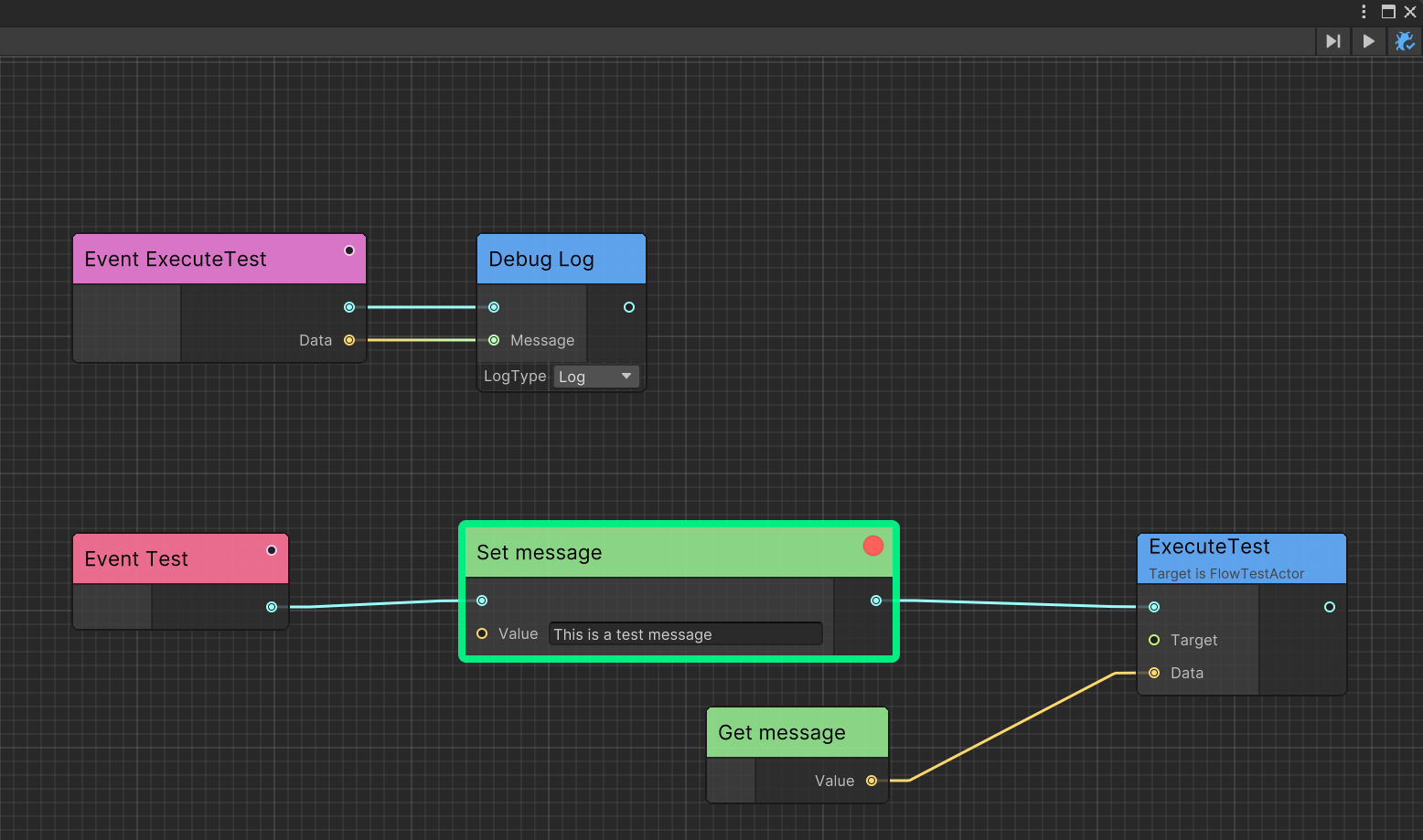
Click Enable Debug Mode in the upper-right toolbar. Use Next Frame to advance node by node.
Breakpoints
Right-click an executable node and select Add breakpoint, then use Next Breakpoint in the toolbar.
Port values
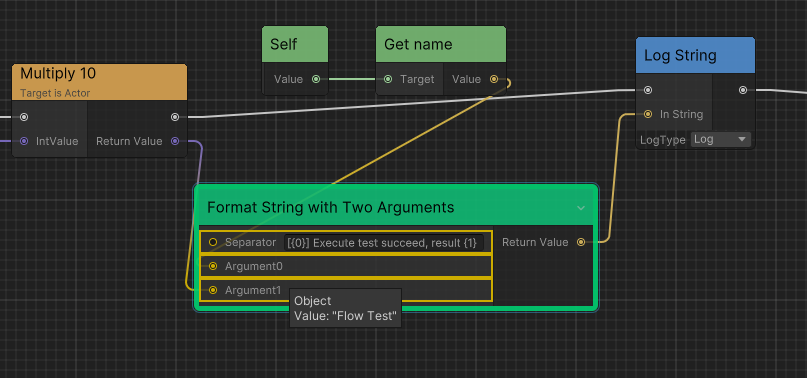
Ceres editor can display the current value of an input port when the mouse hovers over the port of the node at the current breakpoint.
Graph tracker
FlowGraphTracker is a class that can be used to track the execution of the graph for advanced debugging scenarios.
See Graph Tracker for scoped runtime tracing.
Hot reload
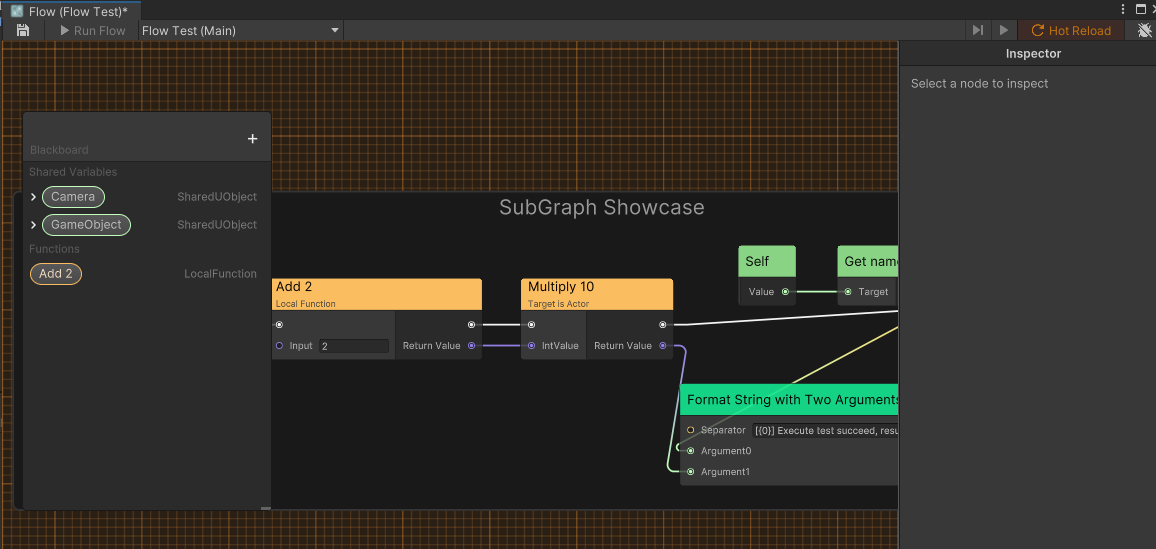
Ceres supports hot reload for active FlowGraphObjectBase instances in editor play mode. Saving replaces the runtime graph used by subsequent events; execution already in progress may finish on the previous graph.
Enable Hot Reload in the Flow editor toolbar, then save the graph while in play mode.
Related guides
- Learn about Graph Tracker for advanced debugging and execution tracking
- Explore Custom Nodes to understand node execution flow
- Check Runtime Architecture for container types and execution context